


Hetzner Robot
How to reset the root or Windows password on Hetzner
The root password on a Hetzner Linux server is reset through the Rescue System, and the files on the disks stay in place. The Windows administrator password is harder: some cases you can solve yourself, and with the rest we will help.
In short
- First, try the password from the server delivery ticket: if you have not changed it, it works.
- Linux: boot the Rescue System, mount the system partition, run
chroot-prepare /mnt,chroot /mntandpasswd, thenreboot. - Windows: Robot has no reset. If you have another administrator login, change the password with the
net usercommand. If not, the options are a reinstall through us or an offline reset with a KVM console. - Do not send the new password to anyone, including us in a ticket.
Contents
You will need
- Your ABCD login for Robot: how to log in to Robot.
- An SSH client: how to connect via SSH.
- About 15 minutes and two server reboots: the server is unavailable while you reset the password.
- No server yet? See Hetzner servers in our catalog.
First, make sure the password is really lost
The password we delivered the server with is in the delivery ticket. If you have not changed it, it works. Most often, the login fails because of small things:
- the password was copied with a space at the start or at the end;
- a different keyboard layout was on when you typed it by hand;
- on Windows, the username was typed wrong: take it from the ticket, it is usually
Administrator. More in the article on how to connect via RDP; - the Robot or Rescue System password was entered instead of the server password. These are three different passwords.
If you changed the password after delivery, we do not know it, and a reset is the only option.
Linux: resetting the root password through Rescue
The server reboots twice: into Rescue and back into its own system. While you reset the password, the sites and programs on it are down. The files on the disks stay.
Boot the server into the Rescue System
In Robot, open Serveryour serverRescue, choose Linux and enable Rescue. Copy the password that Robot shows, and within 60 minutes reboot the server on the Reset tab. This step is covered in detail in the article on how to enable Rescue.
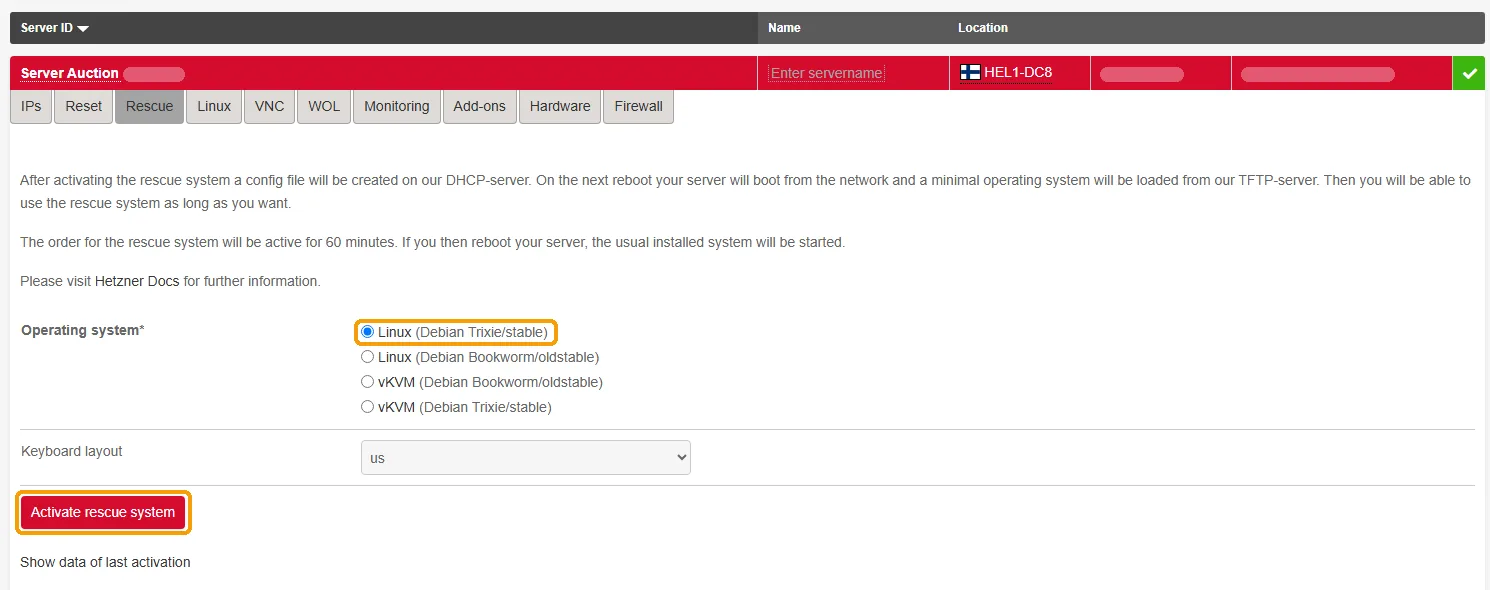
On the Rescue tab, select Linux and click Activate rescue system Log in to Rescue via SSH
ssh root@203.0.113.10Use your server’s IP and enter the Rescue password, the one Robot showed when you enabled it. If SSH says the server key has changed, run
ssh-keygen -R 203.0.113.10and connect again: Rescue has its own key.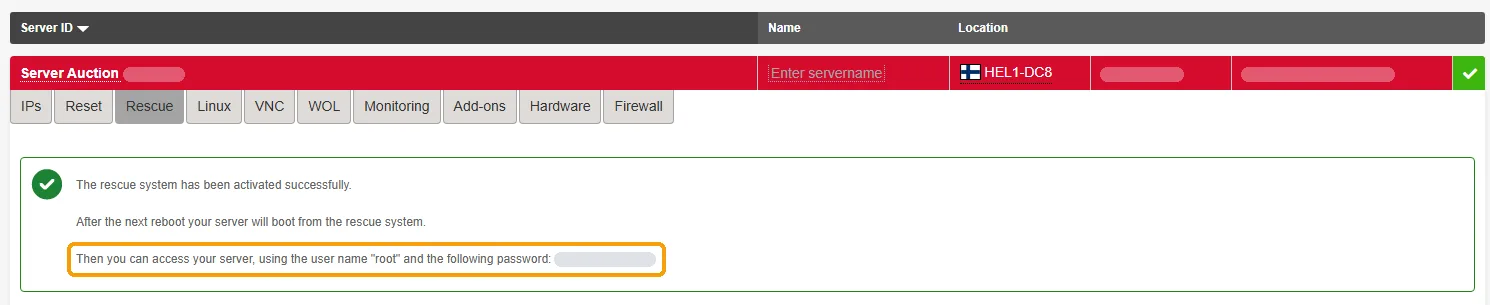
This is the password for logging in to Rescue. You set the new root password yourself in step 6 Find the system partition
lsblk -o NAME,SIZE,TYPE,FSTYPE
cat /proc/mdstat
If the server has software RAID, the system is usually on the
/dev/md2array. Without RAID, it is usually the last or second-to-last partition of the disk, for example/dev/nvme0n1p3or/dev/sda3. If FSTYPE showsLVM2_member, runvgchange -ayand take the volume from/dev/mapper/, for example/dev/mapper/vg0-root. How to read thelsblkoutput is shown in the article on Rescue.Mount the partition
mount /dev/md2 /mnt
ls /mnt
Replace
/dev/md2with your partition. If/mntcontains theetc,rootandusrfolders, you have mounted the system. If there are only files likevmlinuzand agrubfolder, this is the boot partition: unmount it withumount /mntand try another one.Switch into the system with chroot
chroot-prepare /mnt
chroot /mnt
The first command mounts the system folders, the second switches you into the system on the disk. From now on, your commands run in your own system.
Set a new password
passwdEnter the new password twice. The characters do not show as you type; that is by design. If the password has changed, Debian and Ubuntu reply
passwd: password updated successfully, and AlmaLinux and Rocky Linux replypasswd: all authentication tokens updated successfully.To change another user’s password, add the username:passwd ubuntu.AlmaLinux, Rocky Linux and CentOS Stream: SELinux
These systems have SELinux enabled, and after a password change from Rescue it may not let you in with the new password. Before you leave chroot, run:
touch /.autorelabelThe first boot after this takes longer than usual: the system relabels the files for SELinux and then reboots once more on its own.
Exit and reboot the server
exit rebootexittakes you back to Rescue, andrebootrestarts the server. Rescue is enabled for one boot only, so the server boots into its own system.
When the server has booted, check that the new password works.
How to check the new password
Connect to the server as root with the new password. SSH will warn about a changed server key again, because now your own system is answering: remove the key with ssh-keygen -R and the server’s IP, then connect again.
Keep the new password in a password manager and do not send it to anyone, including us in a ticket: we do not need it to help with the server.
If you logged in with an SSH key and lost it
A lost key is also replaced through Rescue, and you do not need chroot for it. First, create a new key pair on your computer:
ssh-keygen -t ed25519The public key appears in the id_ed25519.pub file in your user’s .ssh folder. Then boot the server into Rescue, mount the system partition (steps 1–4 above) and open root’s key file:
mkdir -p /mnt/root/.ssh
nano /mnt/root/.ssh/authorized_keys
Paste the line from id_ed25519.pub (it starts with ssh-ed25519) and delete the line of the lost key. Save the file with Ctrl+O and Enter, and exit with Ctrl+X. If nano is not available, mcedit opens the same file: F2 saves, F10 exits. Then set the permissions and reboot the server:
chmod 700 /mnt/root/.ssh
chmod 600 /mnt/root/.ssh/authorized_keys
reboot
After the server boots, connect with the new key, as described in the article on connecting via SSH.
Windows: what you can do about the administrator password
Robot has no button to reset a Windows password, and the Rescue System is Linux, so you cannot change the password from it with standard Windows tools. What works depends on whether you still have any way to log in.
| Situation | What to do |
|---|---|
| You have another user with administrator rights, or an open RDP session | Change the password yourself: open Command Prompt as administrator and run net user Administrator *. Windows asks for the new password twice. |
| You cannot log in, and the files on the server can be saved or are not needed | Retrieve the files through the Rescue System: it can usually read a Windows disk. Then ask us in a ticket to reinstall Windows. A reinstall erases everything on the disks. |
| You cannot log in, and the files and programs must stay in place | You can clear the password from Rescue with chntpw, then log in with an empty password through the KVM console and set a new one. This method is for those who are comfortable with Linux; the steps are below. |
| The disk is encrypted with BitLocker | Without the BitLocker recovery key, neither Rescue nor the console will help: a reinstall is the only option. |
Offline Windows password reset through Rescue and the KVM console
This method changes the Windows system file that holds the user accounts (SAM), so save a copy of it first. It works for a local account, such as Administrator, and does not work with an encrypted disk.
- Order a KVM console from us for the time you need: you will need it at the end.
- Boot the server into Rescue and find the Windows partition: in the output of
lsblk -o NAME,SIZE,FSTYPEit is markedntfs. If themountorchntpwcommand later reports that a program is not found, install both:apt update && apt install -y ntfs-3g chntpw. - Mount the partition for writing and save a copy of the accounts file:
mount -t ntfs-3g /dev/nvme0n1p2 /mnt cd /mnt/Windows/System32/config cp SAM SAM.bak - List the accounts and clear the password of the one you need:
In the menu, choosechntpw -l SAM chntpw -u Administrator SAM1 - Clear (blank) user password, thenq, and answerywhen asked whether to write the changes. - Unmount the partition and reboot the server:
cd / && umount /mnt && reboot. - In the KVM console, log in as Administrator with an empty password and set a new one right away. Windows does not let you in via RDP with an empty password: by default, such a login is allowed only from the server’s own screen.
If you are not sure which way is yours, describe the situation in a ticket or on Telegram, and we will tell you what will be quicker.
If something goes wrong
| What you see | What to do |
|---|---|
passwd: Authentication token manipulation error | The partition is mounted read-only. Leave chroot with exit, run mount -o remount,rw /mnt and repeat steps 5 and 6. |
chroot: failed to run command '/bin/bash': No such file or directory | The wrong partition is mounted, for example the boot partition. Unmount it with umount -R /mnt and mount another one: the one where /mnt has an etc folder. |
SSH does not accept the new password: Permission denied | Root login with a password may be disabled in the SSH settings. Check from Rescue: grep -Ei 'PermitRootLogin|PasswordAuthentication' /mnt/etc/ssh/sshd_config /mnt/etc/ssh/sshd_config.d/*.conf. If it says no or prohibit-password, log in with an SSH key, as described above: that is also more secure. |
| The server does not come back online after the reboot | Wait 15 minutes: on AlmaLinux and Rocky Linux, the first boot after /.autorelabel takes a long time. If it still does not appear, boot Rescue again and check the system, or ask for a KVM console. |
The Windows partition will not mount: Windows is hibernated, refused to mount or Metadata kept in Windows cache, refused to mount | Windows was shut down into hibernation or with Fast Startup, so the partition cannot be mounted for writing. Mount it with the remove_hiberfile option: mount -t ntfs-3g -o remove_hiberfile /dev/nvme0n1p2 /mnt. The saved Windows session is lost, and changes Windows had not yet written to the disk may be lost too. If the server holds important data, message us in a ticket first. |
| Robot does not open from your network | This is a restriction on your internet provider’s side. Message us in a ticket or on Telegram, and we will boot the server into Rescue for you. |
If your server is with OVH, the procedure is different: see Rescue and IPMI on an OVH server.
FAQ
Can you send me my root password?
Will resetting the password delete my files?
passwd command change only the password; your files and programs stay in place.I forgot my Robot password, not the server password. What should I do?
Did this guide help?
Thank you! This tells us which guides work.
What went wrong?
Tell support at which step you got stuck and include the link to this guide, so you don’t have to explain from scratch.