


Hetzner Robot
Hetzner Robot login: how to sign in and what you can do
Hetzner Robot is the Hetzner control panel where you reboot your server and boot the Rescue System yourself. We send you the Robot login in the server delivery ticket, and if Robot does not open from your network, you can ask us to do what you need.
In short
- Your Robot username and password come in the ticket together with the server details. It is an admin login for a single server: each of your servers has its own.
- The Robot menu has two items: Server and Traffic statistics. You reboot the server and boot the Rescue System yourself, on the Reset and Rescue tabs.
- This login cannot open tickets with Hetzner, place orders or cancel anything. For a KVM console, additional IPs, Windows or cancelling the server, contact us in a ticket or on Telegram.
- If Robot does not open from your network, tell us what to do with the server, and we will do it for you.
Contents
You will need
- The Hetzner server delivery ticket: it contains the server’s IP address, its password and the Robot login.
- A browser with cookies enabled: Robot does not work without them.
- No server yet? See Hetzner servers in our catalog.
Your ABCD login: one per server
The Hetzner servers you rent from us are registered to the ABCD.HOST account at Hetzner. For each server we create a separate admin login: this is what Hetzner calls access to one server without access to the rest of the account (see the Hetzner documentation).
This means two things:
- one login opens one server. If you have three servers, you have three logins, each in the delivery ticket of its own server;
- the login manages only the server. Hetzner lets it reboot the server and use the Rescue System, but not open tickets with Hetzner support, place orders, cancel services or change account details.
Only the account owner, which is us, can change the password of this login. If an outsider has learned the password, or someone who knew it has left your team, let us know in a ticket and we will issue a new one.
How to log in to Robot
Find the login in the server delivery ticket
The ticket in which we told you the server is ready contains the IP address and password of the server itself and, separately, the Robot username and password. The server password is for logging in via SSH or RDP; the Robot password is only for the panel.
Open Robot and enter the username and password
Open the Robot link from the ticket or go to robot.hetzner.com. Copy the username and password from the ticket in full, with no spaces at either end: when you type them by hand, it is easy to get one character wrong.
robot.hetzner.com opens the Hetzner Accounts login page. Paste the Robot username into Client number or login, the password into Password, and click Log in.
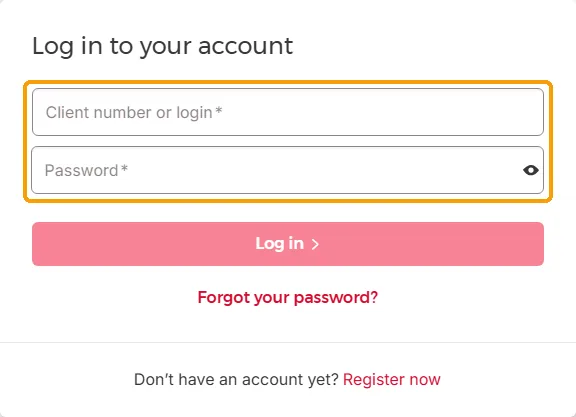
Paste the username and password from the server delivery ticket Older guides give the address robot.your-server.de. Robot now runs at robot.hetzner.com.
Open the server from the Server menu
The menu on the left has two items: Server and Traffic statistics. The list has one server, the one the login was issued for. Click it to open the server page with its tabs.
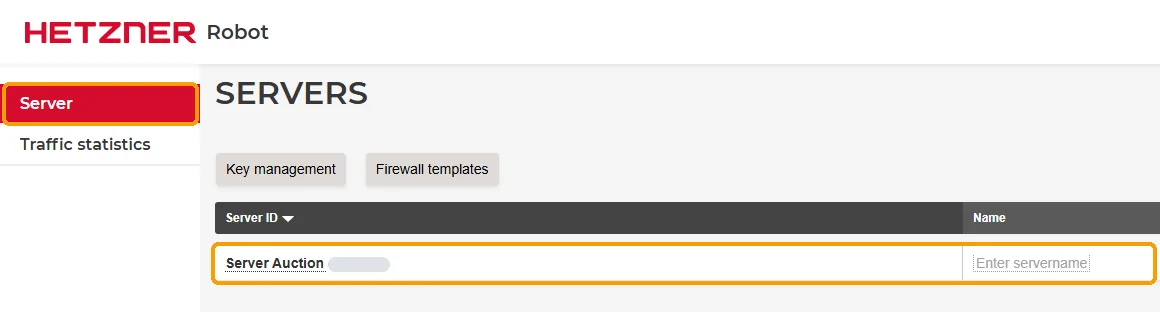
With an ABCD login, the menu has two items and the server list has one server 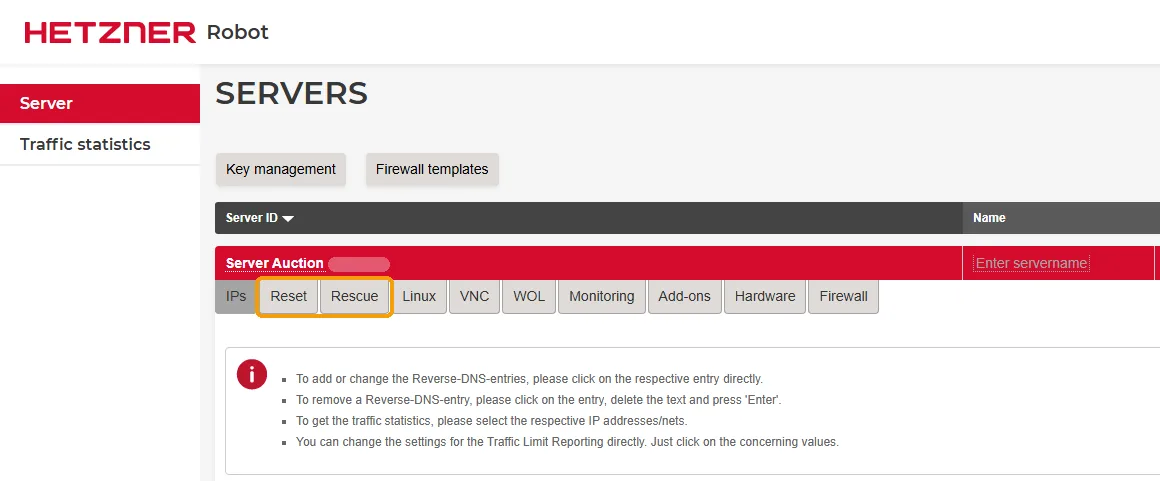
Rebooting and the Rescue System are on the Reset and Rescue tabs of the server page
From here, everything happens on the server’s tabs. The next section shows what is where.
What you can do in Robot yourself
| Task | Where in Robot | Guide |
|---|---|---|
| Reboot a server that has frozen | The Reset tab | How to reboot the server |
| Boot the Rescue System: retrieve files, reset a password, fix booting | The Rescue tab | Hetzner Rescue System |
| Reinstall Linux | The Rescue System and the installimage installer (or the Linux tab) | How to reinstall Linux |
| Change the reverse DNS (rDNS) record of an IP address | The IPs tab: click the record in the Reverse DNS entry column | — |
| View the server’s traffic by day, month and year | Traffic statistics in the left menu, then the IP address | — |
With this kind of login, the server page currently has ten tabs: IPs, Reset, Rescue, Linux, VNC, WOL, Monitoring, Add-ons, Hardware and Firewall. If the tab you need is missing, tell us what to set up and we will do it for you.
You can also ask us to reboot the server or boot Rescue, but doing it yourself is faster: you do not have to wait for a reply in the ticket.
What we do for you: orders, KVM console, cancellation
Anything in Robot that takes a ticket to Hetzner or an order is not available with the ABCD login. We do these things at your request in a ticket or on Telegram:
- a KVM console, when you need to see the server’s screen: how to get a console;
- a manual reboot by a data center technician, if the Reset tab does not offer one;
- additional IP addresses and subnets: ordering and setup;
- Windows Server and its license: versions and licensing;
- replacing a disk or other hardware: how to check disks and order a replacement;
- a new password for the Robot login;
- cancelling the server: cancellation and refund rules.
Renewal and payment are not linked to Robot: they are in your my.abcd.host client area. In your message, give the server’s IP address and what needs doing, so we do not have to ask again.
If Robot will not let you in or does not open
| What happens | What to do |
|---|---|
Robot says Please activate cookies in your browser. | Robot does not work without cookies. Allow them for hetzner.com sites in your browser settings, or open Robot in another browser. |
| Robot does not accept the username or password | Copy both again from the ticket, with no spaces at either end, and check that you are using the login for this particular server. If that does not help, message us: we will check the login and issue a new password. |
| Only one of several servers is visible | That is how it should be: one login opens one server. For another server, log out of Robot and log in with that server’s login. If you do not have a login for it, message us. |
| The Robot page does not load, although other sites open | Most likely, this is a restriction on your internet provider’s side. Tell us what to do: reboot the server, enable the Rescue System, reinstall the system. We will do it ourselves and reply in the ticket. |
If the server itself does not open either, see what to check when the server is not responding and how to check it from another network.
FAQ
Why can I see only one server in Robot?
Can I contact Hetzner support from Robot?
How do I change my Robot password?
Are Robot and Hetzner Console the same thing?
Did this guide help?
Thank you! This tells us which guides work.
What went wrong?
Tell support at which step you got stuck and include the link to this guide, so you don’t have to explain from scratch.