


Hetzner Robot
How to reboot a Hetzner dedicated server in Robot
If your Hetzner server does not respond via SSH or RDP, you can reboot it yourself on the Reset tab in Robot. A frozen server needs a hardware reset; if that does not help, a data center technician will reboot it.
In short
- If the server still responds, reboot it from inside:
rebooton Linux, Start → power button → Restart on Windows. - If it has frozen, open Serveryour serverReset, choose the hardware reset, Execute an automatic hardware reset, and send the request once.
- A reset does not erase the files on the disks, but anything programs had not yet written to disk is lost.
- If the server has not responded after 15 minutes, repeat the hardware reset once; if that does not help, order a manual reset by a technician or message us.
Contents
You will need
- Your ABCD login for Robot: it is in the server delivery ticket. How to log in to Robot.
- The server’s IP address, to check it after the reboot.
- A few minutes while the server boots: sites and programs on it are unavailable during that time.
If the server responds, reboot it from inside
As long as you can log in to the server via SSH or RDP, a reboot from inside is safer than any option in Robot: the system closes programs and finishes writing data to disk on its own.
- Linux: connect via SSH and run
reboot(as a regular user,sudo reboot). - Windows: Start → power button → Restart. The same from the command line:
shutdown /r /t 0.
If you cannot log in, go to Robot.
Which reset option to choose
On the Reset tab, Robot offers several reset options. The set depends on the server, so go by the option’s name: its position in the list differs from server to server.
| Option in Robot | What happens | When to choose it |
|---|---|---|
| Hardware reset: Execute an automatic hardware reset | The same as the Restart button on the case: the power is cycled and the server boots again. | The server has frozen and responds neither via SSH or RDP nor to ping. The main option. |
| Software reset: Send CTRL+ALT+DEL to the server | The server receives the Ctrl+Alt+Del key combination. Linux that still reacts to the keyboard reboots cleanly. | Linux is slow but not completely frozen. Windows opens its security screen on this combination and does not reboot. |
| Power button: Press power button of server | A short press of the power button. The system receives a signal and, if it is configured to, shuts down on its own. | When you need to turn the server off, or turn on a server that is off. A server turned off this way will not turn back on by itself: send this option again. |
| Manual reset by a technician: Order a manual power cycle | A data center technician reboots the server by hand and watches its screen. | The hardware reset did not help. You will wait longer than for an automatic reset. |
If the list has a long press of the power button (Long power button press), that is a forced shutdown, and you do not need it to reboot. If in doubt, choose the hardware reset: it works faster than the others and needs no technician, which is why our support recommends it too.
A hardware reset restarts the server without a clean shutdown. Anything programs had not yet written to disk is lost, and the file system or a database may be damaged. Files already on the disks are not erased by the reset.
Rebooting in Robot step by step
Log in to Robot and open the server
Log in with the Robot username and password from the delivery ticket and open Serveryour server. If you cannot log in, see how to log in to Robot.
Open the Reset tab
The Reset tab is on the server page, among the other tabs. It holds the list of reset options.
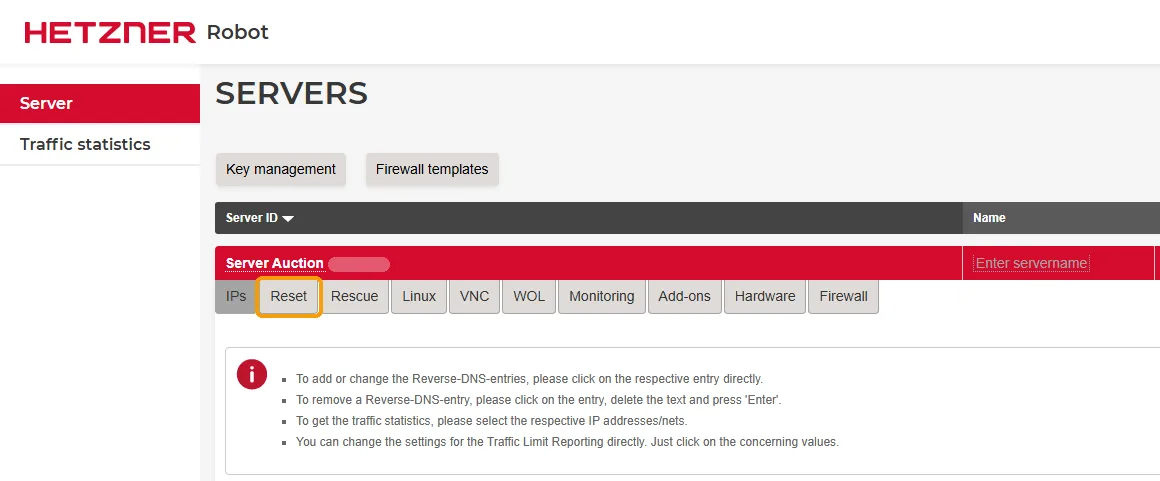
The Reset tab on the server page Choose the hardware reset and send the request
For a frozen server, select Execute an automatic hardware reset; for other cases, check the table above. Confirm your choice with the Send button below the list.
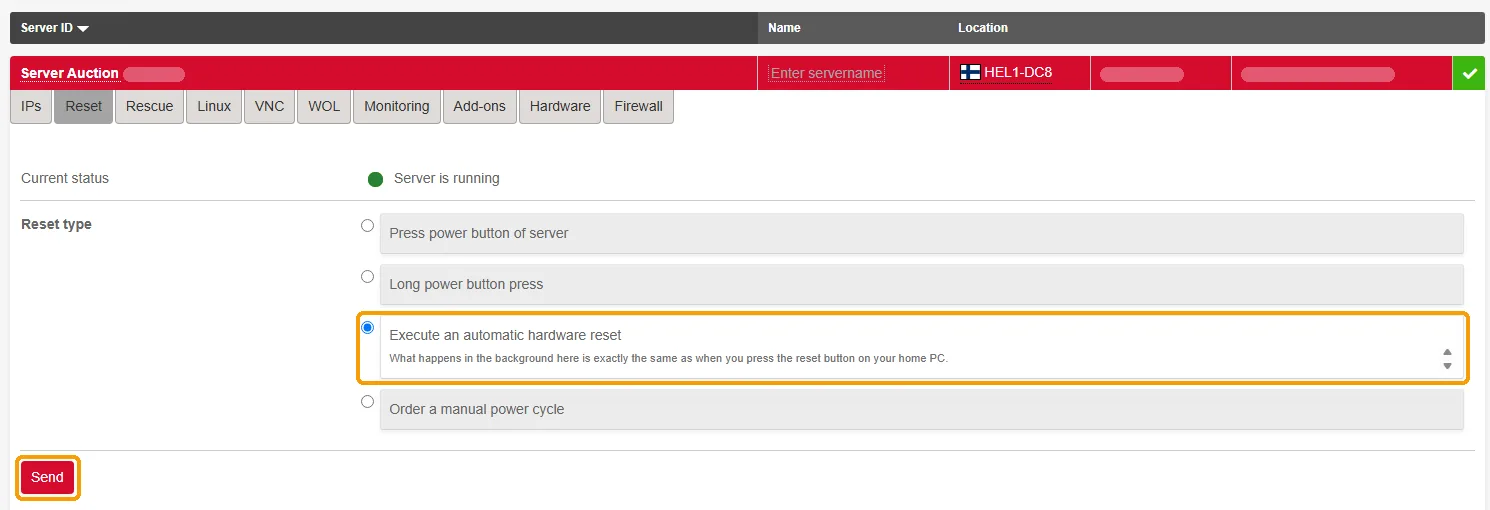
Select the hardware reset and click Send once Send the request once. Each new reset interrupts the boot already in progress, and the server starts booting all over again.
Wait and check the server
Give the server a few minutes to boot and check it as described below.
How to check that the server is back up
Run ping to the server in a terminal or Command Prompt. While the server is booting, there are no replies; once replies come in, the network is up.
ping 203.0.113.10Replace 203.0.113.10 with your server’s IP address. On Windows the command sends four requests and stops by itself; on macOS and Linux, stop it with Ctrl+C.
When ping replies, connect as usual: via SSH or via RDP. Windows Server may not reply to ping if its firewall blocks it; in that case, try RDP right away.
A few minutes is usually enough. Servers with a lot of memory and many disks take longer to boot, and so does Windows when it is installing updates.
If the server does not come back up
| What you see | What to do |
|---|---|
| No ping and no SSH or RDP login after 15 minutes | Repeat the hardware reset once. If that does not help, choose the manual reset by a technician, Order a manual power cycle. If there is no such option, message us and we will order it. |
| Robot says a manual reset is already running | A technician is already working on the server, and Robot will not accept a second manual reset until the first one is finished. Wait for the result. |
| Ping works, but you cannot log in via SSH or RDP | The server has booted, but the login service has not started or the firewall in the system itself is blocking it. Check the settings through the Rescue System or ask for a KVM console to see the screen. |
| The server booted into the Rescue System instead of its own system | Rescue was enabled on the Rescue tab before the reboot, and it applies to one boot. Run reboot in Rescue, and the server will boot from its own disks. |
| The server was delivered in the Rescue System, and no system is installed on the disks yet | After a reboot, the server has nothing to boot from. Enable Rescue again and install a system: how to reinstall Linux. |
| Robot does not open from your network | This is a restriction on your internet provider’s side. Tell us in a ticket or on Telegram which server to reboot, and we will do it ourselves. |
If the server still does not respond, message us with the IP address, since when it has been unreachable, which resets you have already tried, and whether we may reboot the server. With these details, we will not need to ask again. More things you can check yourself are in the article on a server that is not responding.
FAQ
Will a reboot erase the data on my server?
Can you reboot the server for me?
Why does the Reset tab show fewer options for my server than this article does?
Did this guide help?
Thank you! This tells us which guides work.
What went wrong?
Tell support at which step you got stuck and include the link to this guide, so you don’t have to explain from scratch.